نمایش نتایج: از شماره 1 تا 10 , از مجموع 18

موضوع: چگونگی راه اندازی یک سرور (در 24 ساعت)

Hybrid View

پست قبلی پست قبلی   پست بعدی پست بعدی
  1. #1
    مدیر کل Vahid آواتار ها
    تاریخ عضویت
    Aug 2008
    نوشته ها
    2,724
    تشکر تشکر کرده 
    435
    تشکر تشکر شده 
    6,994
    تشکر شده در
    2,087 پست

    پیش فرض

    PhpMyAdmin Installation

    PhpMyAdmin is a nice web based database management and administration software and easy to install and configure under apache.Managing databases with tables couldnt be much simpler by using phpmyadmin.
    All you need to do is:
    apt-get install phpmyadmin
    The phpmyadmin configuration file is located at: /etc/phpmyadmin folder.
    To setup under apache all you need to do is include the following line in /etc/apache2/apache2.conf
    Include /etc/phpmyadmin/apache.conf
    Now restart apache: /etc/init.d/apache2 restart
    Point your browser to: http://domain/phpmyadmin
    Thats it!! MySQL and phpMyAdmin is Ready !!! Login with your mysql root password and create users to connect to database from your php script.
    3. Mail Server Installation


    • Postfix (Mail Transfer Agent MTA)
    • Dovecot (IMAP/POP3 Server)
    • SASL Authentication with TLS (Authenticate before sending mail outside network in Outlook)
    • Squirrel Mail (Popular Web based Email)

    As a beginner to linux it took about almost a month for me for proper installation of mail server and fixing necessary problems. I had real nightmares to configure this and so i decided that my hardwork would be helpful to linux community.
    Note: If you install Postfix/Dovecot mail server you will ONLY be able to send mail within your network. You can only send mail externally if you install SASL authentication with TLS. As otherwise you get nasty "Relay Access Denied" error.
    3a. Install Postfix MTA (Mail Transfer Agent)

    First install postfix package along with sasl with apt-get
    apt-get install postfix postfix-tls libsasl2 sasl2-bin libsasl2-modules popa3d
    During installation, postfix will ask for few questions like name of server and answer those questions by entering your domain name and select Internet site for postfix.
    Postfix configuration file is located at:/etc/postfix/main.cf. You can edit this file using popular text editor nano /etc/postfix/main.cf
    Start or Restart Postfix Server:
    /etc/init.d/postfix restart
    /etc/init.d/postfix stop
    /etc/init.d/postfix start
    3b. Install Dovecot

    Dovecot is one of the popular POP3/IMAP server which needs MTA like Postfix to work properly.
    apt-get install dovecot
    In some linux versions, the above might not work so you can install by specifying individual package names.
    apt-get install dovecot-imapd dovecot-pop3d dovecot-common
    Dovecot configuration file is located at: /etc/dovecot/dovecot.conf
    Before we proceed we need to make some changes with dovecot configuration file. Double check the following entries in the file if the values are entered properly.
    nano /etc/dovecot/dovecot.conf

    # specify protocols = imap imaps pop3 pop3s
    protocols = pop3 imap
    # uncomment this and change to no.
    disable_plaintext_auth = no
    pop3_uidl_format = %08Xu%08Xv

    I have noticed that in some ubuntu versions, most of the above parameters are not specified. You will need to insert the values if not specified or left empty. If you dont uncomment and change disable_plaintext_auth to no, you will get "plain text authentication error" from outlook or mail clients.
    Now, create a user to test our pop3 mail with outlook:
    adduser <user_name>
    Caution: Always create a separate user to test your mail or ftp. DO NOT LOGIN WITH ROOT ACCESS.
    Restart Dovecot:
    /etc/init.d/dovecot restart
    Now, you can use your outlook express to test whether your new mail server is working or not. Just enter username: <user_name> with password in outlook.
    Remember you will NOT be able to send email outside your network, you will be only be able to send within your domain or local network. If you attempt to send email you get nasty "relay access denied" error from outlook express. However, you should have no problems in receiving your email from outlook. Inorder to send email external email you will need to configure SASL authentication as described below.
    3c. Configure SASL Authentication with TLS

    SASL Configuration + TLS (Simple authentication security layer with transport layer security) used mainly to authenticate users before sending email to external server, thus restricting relay access. If your relay server is kept open, then spammers could use your mail server to send spam. It is very essential to protect your mail server from misuse.
    Let us set up SMTP authentication for our users with postfix and dovecot.
    Edit the postfix configuration file /etc/postfix/main.cf and enter the few lines to enable authentication of our users
    smtpd_sasl_auth_enable = yes
    smtpd_sasl_local_domain = yourdomain.com
    smtpd_recipient_restrictions = permit_mynetworks,permit_sasl_authenticated,reject _unauth_destination
    smtpd_sasl_security_options = noanonymous
    On the Dovecot side you also need to specify the dovecot authentication daemon socket. In this case we specify an absolute pathname. Refer to this postfix manual here
    Edit /etc/dovecot/dovecot.conf
    Look for the line that starts with auth default, before that insert the lines below.
    auth default {
    mechanisms = plain login
    passdb pam {
    }
    userdb passwd {
    }
    socket listen {
    client {
    path = /var/spool/postfix/private/auth
    mode = 0660
    user = postfix
    group = postfix
    }
    }
    }
    Now, rename previous auth default to auth default2. If you dont rename this then dovecot server will give you error like multiple instances of auth default.
    Now restart all the components of mail server.
    /etc/init.d/saslauthd restart
    /etc/init.d/postfix restart
    /etc/init.d/dovecot restart
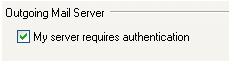
    Test whether your mail server works or not with your outlook express. Configure a user with a user name <user_name> (without @domain) and make sure that you select my server requires authentication. Under settings select same as incoming mail server


    NOTE:

    1. If you dont enable My server requires authentication in outlook you cannot send emails to external recipients and you get relay access denied error.

    2. Do not use root login to login to your mail server.

    3. Dont forget to create a new user before you authenticate using outlook.

    برای پیش رفت در علم آسانسوری وجود ندارد پله ها را باید پیاده رفت /./ همیشه این یادتان باشد که دست بالای دست بسیار است.
    يادمان باشد براي يك بار ايستادن صد ها بار افتاده ايم /./ بک آپ مهمترین رمز موفقیت هاستینگ /./ امنیت مطلق نیست.
    ارتباط مستقیم با من :
    Admin -{(@)}- WebHostingTalk . ir

  2. تعداد تشکر ها ازVahid به دلیل پست مفید


  3. #2
    مدیر کل Vahid آواتار ها
    تاریخ عضویت
    Aug 2008
    نوشته ها
    2,724
    تشکر تشکر کرده 
    435
    تشکر تشکر شده 
    6,994
    تشکر شده در
    2,087 پست

    پیش فرض

    3d. Forwarding Mails

    Ever wondered how to forward your mails especially if you are a webmaster managing number of sites. You might need to forward any email sent to your primary email address. Its that easy. Just create a .forward file on your home directory. Insert list of emails addresses separated by commas, where you want to get forwarded.
    Login as user and type
    echo 'destination_email_address' > .forward
    or you can use nano to create .forward file. Just Delete .forward file if you dont want any forwarding.
    Installing Squirrel Web Mail

    Squirrel mail is one of the most popular web based email with very friendly interface. Squirrel mail works without mysql database very easy to install and configure under apache2..
    Note: It is recommended to have apache and php installed before you install squirrelmail.
    apt-get install squirrelmail
    Squirrelmail configuration file is located in: /etc/squirrelmail/ folder. By default all settings are preloaded.
    # Run squirrelmail configuration utility as ROOT
    /usr/sbin/squirrelmail-configure
    Now we want to setup to run under apache. Edit apache configuration file /etc/apache2/apache2.conf and insert the following line:
    Include /etc/squirrelmail/apache.conf
    Thats it. Your webmail is ready !!!.
    Point your browser to: http://yourdomain/squirrelmail
    Create a separate local user and login as a new user.

    DO NOT LOGIN AS ROOT AND YOU WILL GET "ERROR: CONNECTION DROPPED"

    Mail Server Problems in Logs

    Always refer to logs located in /var/log/mail.log so that you can identify what the problem is before you can troubleshoot.
    4. Webmin - Server Control Panel

    Webmin is a nice server control panel available free of charge. It is similar like cpanel or plesk to manage your server. Download the latest version of webmin from the main site
    wget http://downloadpath/webmin-x.x.xx.tar.gz
    tar xzf webmin-x.x.x.tar.gz
    cd /webmin-x.x.x
    ./setup.sh
    The installation program will ask series of questions and most values will be automatically set by default.
    Once done, point your browser to: http://ip.address:10000 or http://www.domainname:10000
    Login into your webmin and you can do almost anything with your server.
    5. Webalizer Installation

    Webalizer is a visitor statistics software shows you nice graphic based on visitors, hits and pageviews of your site. It is indeed very easy to configure and run webalizer under apache. Webalizer runs as a daily cron job to monitor your server stats.
    apt-get install webalizer
    Now edit the webalizer configuration file located at: /etc/webalizer.conf and locate a line with LogFile /var/log/apache/access.log.1 and change to the correct name access.log as shown below.
    LogFile /var/log/apache2/access.log
    and the bin of webalizer is located at /usr/bin/webalizer which is automatically scheduled to run daily as cron job.
    To run webalizer manually.
    /usr/bin/webalizer
    Point your browser to http://domain/webalizer and you must see some pretty nice visitor statistics of your site.
    6. Installing FTP Server (VSFTP)

    You will need a simple ftp server to upload and download your web files. i specially like vsftp server because not only it is very easy to configure but also runs faster than other ftp peers with good connection speed.
    apt-get install vsftpd
    Configuration file is located at: /etc/vsftpd.conf
    Change the following settings in /etc/vsftpd.conf so that you allow local users and allow write using ftp.
    # Uncomment this to allow local users to log in.
    local_enable=YES
    # Uncomment this to enable any form of FTP write command.
    write_enable=YES
    Before you connect using ftp client, you will need to create local users and group. Do not upload files using root.
    # CD to /home/<user> and create a symbolic link to /var/www as this is the public html folder.
    ln -s /var/www www

    #change ownership /var/www to user
    chown -R <user> /var/www

    #Change to 755 permissions
    chmod -R 755 /var/www
    Now you can connect to ftp and upload files. Once you upload all necesarry files in the public html folder, make sure all the files have 755 permission as otherwise you will get permission denied/forbidden error from apache.
    Enabling VSFTP to Show Dotted Files

    By default, vsftp does not show dotted files in the server, especially .htaccess, eventhough you have successfully uploaded the files. This could be frustrating especially if you are using .htaccess for authentication or rewriting friendly URLs. To fix this just add force_dot_files=YES in your vsftp configuration file /etc/vsftpd.conf
    # Activate directory messages - messages given to remote users when they
    # go into a certain directory.
    dirmessage_enable=YES
    force_dot_files=YES
    Restart the vsftp server /etc/init.d/vsftpd restart.
    Webmin Package: VSFTP also available as webmin package. You can easily change settings from webmin for vsftp.
    7. ClamAV - Antivirus Software

    Linux based systems are often vulnerable to trojans, worms and viruses. It is often to be on the safer side to scan your server using freely available ClamAV antivirus available for linux
    apt-get install clamav
    To scan necessary files
    clamscan -R /folders
    -R is recursive and is optional
    To update virus database:
    freshclam
    Running as Cron Daily Job
    To run antivirus as a cron job (automatically scan daily) just run crontab -e from your command line. Then add the following line and save the file.
    02 1 * * * root clamscan -R /var/www
    This will run the cron job daily @ 1.02 AM by scanning the public html. You can change the folder to whatever you want for mail etc.
    8. Quick IP Tables Firewall

    Without firewall there is no absolute security for your server. Atleast i would recommend a simple firewall that would employ packet filtering and block off unnecessary ports in your server using IP tables.
    apt-get install iptables
    I found Quick n Dirty Firewall pretty interesting. You can copy and run the shell script to set up your quick firewall.
    Remember not to block important ports like
    21 (ftp)
    22 (SSH)
    23 (Telnet)
    25 110 (email)
    443 (SSL http or https)
    993 (imap ssl)
    995 (pop3 ssl)
    10000 (webmin)
    80 (http)
    9. PHP*MySQL*Apache Server Kits

    Xampp Server for Windows/Linux - apache friends - very easy apache, mysql, php and perl installation without hassles
    ApachePHPMySQL Project - SourceForge.net: ApachePHPMySQL
    WAMP Server - Install PHP 5 Apache MySQL on Windows : WampServer
    Easy PHP Server - http://www.easyphp.org/
    AppServ Server Kit - AppServNetwork
    10. Useful Reference

    Debian Help - http://www.debianhelp.co.uk
    VPS Link Resources: http://wiki.vpslink.com
    DNS Setup:Setup your Own Name Server with Directadmin
    Article: Implementing PHP File Upload Security
    Article: Install APF Firewall in Linux Servers
    برای پیش رفت در علم آسانسوری وجود ندارد پله ها را باید پیاده رفت /./ همیشه این یادتان باشد که دست بالای دست بسیار است.
    يادمان باشد براي يك بار ايستادن صد ها بار افتاده ايم /./ بک آپ مهمترین رمز موفقیت هاستینگ /./ امنیت مطلق نیست.
    ارتباط مستقیم با من :
    Admin -{(@)}- WebHostingTalk . ir

  4. تعداد تشکر ها ازVahid به دلیل پست مفید


  5. #3
    عضو جدید
    تاریخ عضویت
    Mar 2009
    نوشته ها
    44
    تشکر تشکر کرده 
    49
    تشکر تشکر شده 
    17
    تشکر شده در
    14 پست

    پیش فرض پاسخ : چگونگی راه اندازی یک سرور (در 24 ساعت)

    سلام ادمین عزیز .
    با تشکر از راهنمایی هاتون .
    خیلی کامل بود
    ولی در قسمت میل سرور بنده مشکلی داشتم .
    بنده با yum خواستم نصب کنم ، چون apt-get جواب نداد .

    این مشکل بود :
    -bash-3.1# apt-get install postfix postfix-tls libsasl2 sasl2-bin libsasl2-modules popa3d
    -bash: apt-get: command not found
    -bash-3.1# yum install postfix postfix-tls libsasl2 sasl2-bin libsasl2-modules popa3d
    .
    .
    .

    Error: qmail conflicts with postfix
    Error: vpopmail conflicts with postfix
    -bash-3.1#

    برای شلوغ نشدن قسمتهای دیگر را حذف کردم !
    لازم به ذکر هست که بنده از کنتر پانل lxAdmin استفاده میکنم که qmail داره .
    ممنون میشم راهنمایی کنید که چطور میتونم میل سرور را راه اندازی نمایم .
    لازم به ذکر هست که بنده با استفاده از outlook امتحان کردم و فقط توانستم میل به داخلی سرور ارسال کنم ، مثلا" از info@mydomain.com به toos@mydomain.com .
    و میلهای خود lxAdmin ارسال میشه به ایمیل بنده در یاهو ولی اسپم میشه !
    ممنون میشم که راهنمایی کنید که چطور میتونم مشکل رو برطرف کنم !
    بنده هم با Outlook و هم با WebMail امتحان کردم .
    ممنون میشم که راهنمایی کنید .
    با تشکر و سپاس
    ویرایش توسط tooshost : March 28th, 2009 در ساعت 20:59
    مادر ، ایران ، عشق !
    حرف من حرف خودم نیست ، حرف خاک حرف ریشست ، حرف دیروز ندیده ، حرف فردا و همیشست ، صحبت سکوت سرده . . .
    حرف تردید یه نسله ، میون رفتن و موندن،بین خوابیدن تا ظهر یا دم سحر پریدن. . .
    یکی باید بگه آخر چرا رنگه ما پریده ، چرا با این همه عینک هیچکسی مارو ندیده .

  6. تعداد تشکر ها از tooshost به دلیل پست مفید


اطلاعات موضوع

کاربرانی که در حال مشاهده این موضوع هستند

در حال حاضر 1 کاربر در حال مشاهده این موضوع است. (0 کاربران و 1 مهمان ها)

موضوعات مشابه

  1. پاسخ ها: 7
    آخرين نوشته: June 1st, 2017, 14:27
  2. افزایش سرعت سایت و بهینه سازی سرعت قالب با قیمت مناسب
    توسط اشکان در انجمن فروش انواع ماژول،پلاگین،قالب،افزونه،امکانات سفارشی
    پاسخ ها: 1
    آخرين نوشته: March 11th, 2016, 17:14
  3. پاسخ ها: 5
    آخرين نوشته: March 18th, 2013, 13:15
  4. پاسخ ها: 1
    آخرين نوشته: January 6th, 2013, 22:59
  5. پاسخ ها: 0
    آخرين نوشته: August 28th, 2012, 20:48

مجوز های ارسال و ویرایش

  • شما نمیتوانید موضوع جدیدی ارسال کنید
  • شما امکان ارسال پاسخ را ندارید
  • شما نمیتوانید فایل پیوست کنید.
  • شما نمیتوانید پست های خود را ویرایش کنید
  •